Getting started
Sign up, connect your AI agent over MCP, and let one workflow, setup-project, take you from zero to collecting structured feedback in about 5 minutes.
PinAppAI is the change-request layer for AI-built sites. AI builds the page; reviewers point at what should change; your AI dev agent gets a structured, locator-precise change request, not a Slack screenshot. This page walks you through the first session end-to-end.
PinAppAI is MCP-first: the fastest path through every step below is a PinAppAI workflow, run inside Claude Code, Codex, Cursor, Continue, or any MCP-aware agent. Each step also has a no-MCP alternative (admin UI + copy-paste prompts). Those are the fallback, not the main road.
1. Create an account
Sign up at app.pinappai.com. The free tier covers 3 projects with unlimited reviewers, enough to evaluate the full flow.
The dashboard walks you through the rest
After sign-up, your dashboard shows a setup checklist: create a project, open your site to reviewers, connect your coding agent, watch the first change request land, run your first apply. You don’t tick anything off yourself; each step completes on its own when the product sees it happen (your project exists, your review link was opened, a pin arrived). Finish the last step and the card retires for good.
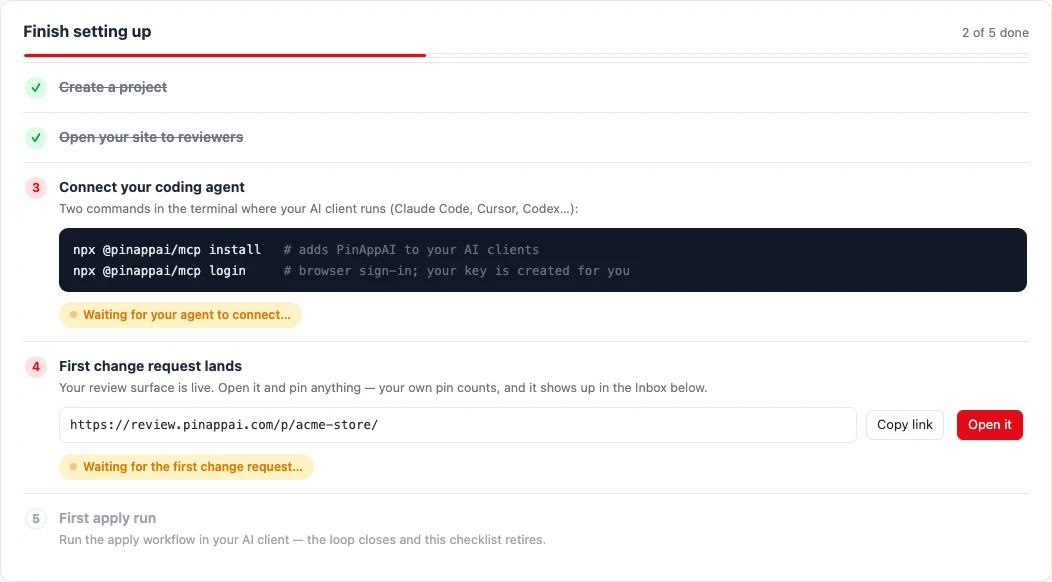
The checklist mirrors this guide: its five steps are sections 2 to 5 below. Follow either; they meet at the same place.
2. Connect your AI agent and run setup
Two commands work for any AI client (Claude Code, Codex CLI, Cursor, Claude Desktop, Continue):
npx @pinappai/mcp install   # registers the MCP entry in every detected AI client config
npx @pinappai/mcp login     # opens browser for sign-in, mints a per-machine key, saves it locally
Restart your AI client, then run the setup-project workflow. How you invoke it depends on your client:
| Your client | Run it |
|---|---|
| Claude Code | Type /pinappai:setup-project |
| Codex | Ask: “run the pinappai setup-project workflow” |
| Continue (agent mode) | Type /setup-project |
| Cursor | Type / and pick it from the menu |
| Claude Desktop | + menu, then pinappai, then setup-project |
| Anything else | Ask in plain language, the same as Codex |
Every workflow below is invoked the same way: swap the name. The full table lives in Run a workflow; examples from here on use Claude Code’s syntax.
That one workflow walks the whole setup: creates the workspace + project, sets allowed origins, embeds the widget snippet in the most idiomatic place for your framework (Astro, Next.js, SvelteKit, Eleventy, Hugo, WordPress, plain HTML), offers the zero-install review link, invites your reviewers, and bootstraps the .pinappai/ directory that makes later rounds iteration-aware. Nothing is ever committed without your explicit say-so: every run ends with an a/b/c/d landing chooser.
CI / headless? Skip
loginand setPINAPPAI_API_KEY=ppk_…in the environment that spawns the MCP. Mint the key at app.pinappai.com/api-keys. Name it after the machine so you can revoke cleanly.
No MCP? The manual path
In the admin, click + New project and enter a slug (URL identity, e.g. acme-marketing), a name, and your allowed origins (start with http://localhost:3000, add staging / production later). Then click Add to your site → Show snippet, embed & remove prompts and copy the one-line <script> tag into a shared layout (base layout, root template, footer partial) so it loads on every public page:
<script src="https://api.pinappai.com/widget.js"
        data-project="pk_yourProjectKey" defer></script>
Prefer an AI to place it but don’t want the MCP? Click Copy embed prompt for AI in the same modal and paste it into any agent with repo access.
Either way: reload your dev server, open any page, and you should see three floating buttons in the bottom-right corner. That’s the widget.

3. Decide who can leave feedback
By default, only invited reviewers + workspace members can submit. The widget shows an email-OTP modal on the first comment; the email must be on the allowlist. The setup-project workflow asks for reviewer emails during the walkthrough; you can always add more later.
Two options:
- Add reviewers explicitly: Projects → Reviewers on the project’s row → Add reviewer → enter email. Repeat for each invitee.
- Flip Open access ON: Projects → Settings on the project’s row → tick Open access. Anyone who can reach the page can verify and submit. Recommended for public beta tests, off for production.
If you set a Site origin, reviewers don’t even need the widget on your site: they annotate through review.pinappai.com/p/<your-project>/ with zero setup (how the review link works). Reviewers who prefer their own logged-in tab can use the reviewer Chrome extension instead; same pins, same stream.
Test it yourself: open your dev page, click a floating button, type your own email, paste the 6-digit code from your inbox, leave a comment. The pin should appear in your admin dashboard within a few seconds.
4. Run an AI-diff review
After a content rewrite or redesign, you don’t want reviewers skimming a 4,000-word diff. You want them to decide on every change individually.
Run:
/pinappai:generate-changes-pageThe agent reads your recent commits, summarizes meaningful changes, writes a single self-contained /changes/ HTML file at the right path for your framework, and registers its items with the API. You only need this for the first page (or a standalone rewrite review). From then on, the apply workflow refreshes /changes/ automatically after every round.
No-MCP fallback: open the Add to your site modal and click Copy AI diff prompt, or copy the ready prompt from the dashboard’s InReview tab (Copy /changes/ prompt), and paste it into your agent.
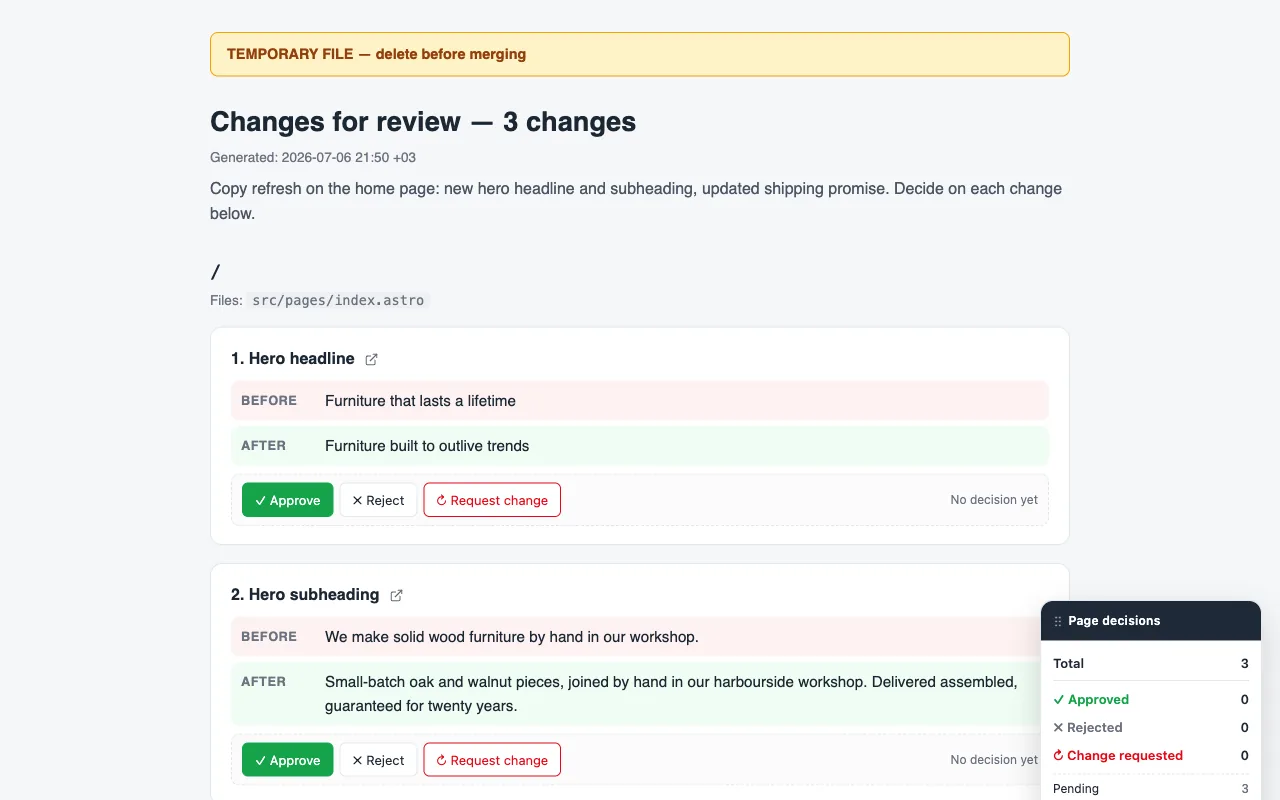
Commit, deploy, and visit /changes/. You’ll see Before / After cards for every change with ✓ Approve / ✗ Reject / ↻ Request change buttons, plus a running decision tally bottom-right:
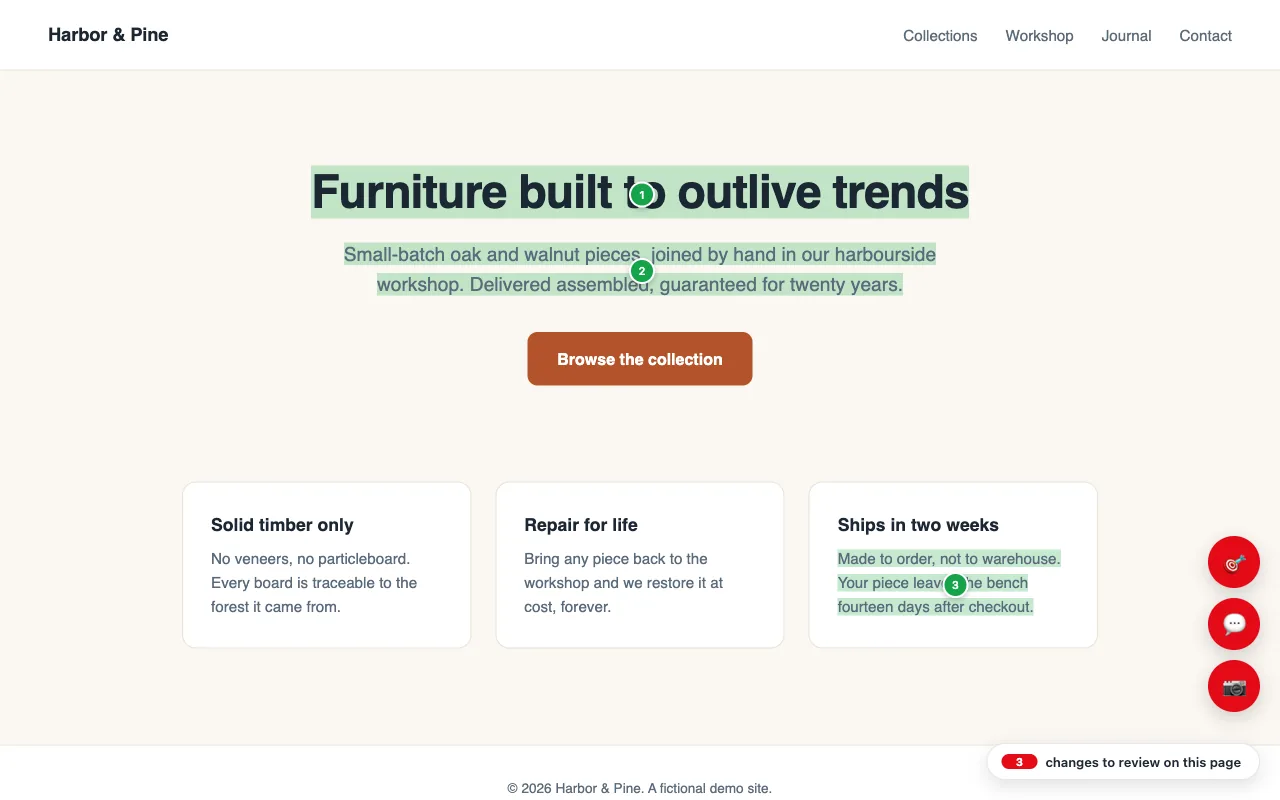
Reviewers can also visit any source page (/pricing/, /features/...) and see a chip bottom-right offering to review changes that target that page in context, each applied change highlighted in place with its numbered pin:
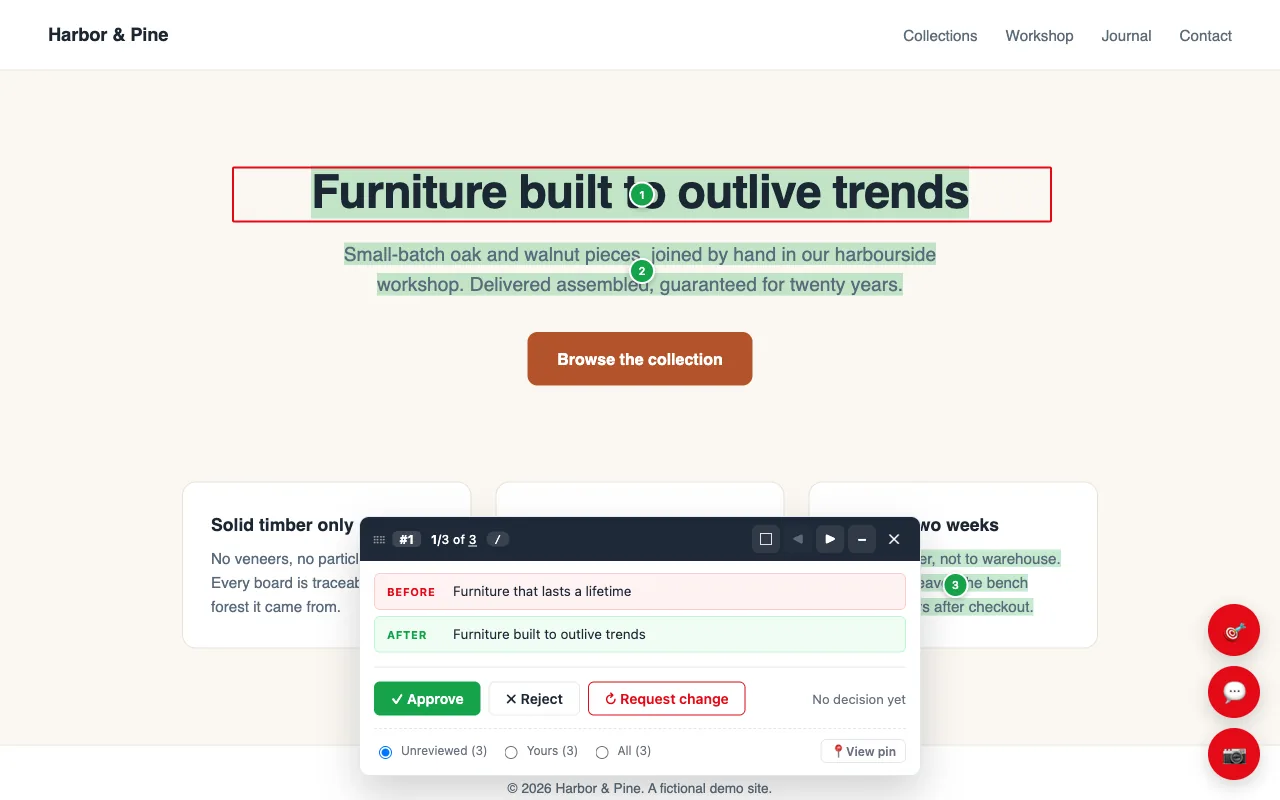
Clicking the chip opens the on-page review panel: it frames each change on the page and walks through them one by one, with the same verdict buttons and the pin’s original comment a click away:
The full walkthrough, including cross-page navigation, deep links, and how decisions feed back into the next AI iteration, is in AI-diff review (the /changes/ workflow).
5. Close the loop with Apply
From here the rhythm is simple: reviewers pin change requests on the live site, each one lands in your dashboard Inbox as a numbered CR (#41, #42, …), and one command drains it:
/pinappai:applyThe agent edits your source (new applies, reverts for rejections, rewrites for change requests), regenerates /changes/, and records the round: every applied CR moves to InReview for verdicts. Same command, every round. The full state model is in the iteration loop, and the other workflows (analyze, summarize, audit-review, auth-help, reset-project) are in the MCP reference.
6. Prefer the desktop client?
If you want reviewers to leave feedback without keeping a browser tab open (useful for designers reviewing a deployed site over hours, or for PMs who want a Notion-like dock for review), install the native reviewer client for macOS. Same API, same projects, same comments; just outside the browser.
What to do next
- Site-wide feedback widget: what reviewers see on every page (FABs, voice dictation, screenshot capture).
- AI-diff review (the /changes/ workflow): the headline flow for structured per-item review.
- Reviewer access & permissions: open access, allowlist, two-stage Remove, what 403 errors mean.
- MCP server for AI agents: the full 10-workflow / 38-tool reference, and how to run a workflow in your client.
When you’re ready to ship to production, two paths to clean removal:
- MCP-native: run the
removeworkflow in your AI client. - No-MCP fallback: open the Add to your site modal once more and click Copy remove prompt for AI.
Either path strips the widget script, deletes /changes/, and verifies with four git grep commands before commit. Both preserve .pinappai/ so re-installing later drops you back into the same baseline.